Courses and Lessons
Courses
The main building blocks of the platform are the learning courses. Each module is aimed at teaching you a broader concept, for example a module could teach everything about Data Structures.
A course and a section are not the same thing. The course holds the lessons and quizzes
themselves, shared by every delivery of it. A section (sometimes labelled "Section 002", or
carrying a term like "Winter 2028") is one specific run of that course: your own enrollment, your
own progress, and your own grades all belong to a section, not to the course as a whole. This is
why you may see the same course name attached to more than one section in "Browse courses": each
is a separate roster you can join. The ? icon next to "Browse courses" explains this in more
detail wherever it appears.
Joining or self-enrolling in a section
To join a new section, open Browse from the rail, find an open section under "Available sections" (or use a link or invite your instructor shared with you), and confirm on the page that follows: that confirm step also reminds you that your progress and quiz results in the new section start fresh, separate from any other section of the same course you may already be in. You can only hold one CURRENT enrollment per course at a time; trying to join a second section of a course you are already in takes you back to the section you are already enrolled in instead.
An archived or past-end-date section can no longer be joined via self-enroll or invite link; if you were already enrolled, you keep read-only access to what you earned there.
Two layers of access
Whether you can read a course's material and whether you can join and be graded in a specific section are two separate questions:
- Can you read the material at all? Every course is either OER (Public), anyone, including a signed-out visitor, can open its published lessons and read them, with no enrollment created just by reading, or Registered Only, where you must be enrolled in one of its sections to open anything.
- Can you join and be graded in a specific section? Each section has its own access level: Open (self-enrol, or your instructor adds you), Invite Only (join through a link your instructor shares, or be added manually), or Restricted (only an instructor or admin can add you).
Because these are independent, a publicly-readable course can still have a Restricted section: anyone may read the material, but only enrolled students belong to the section, submit work, and receive grades. A signed-out reader of an OER course can still run its code examples and submit its quizzes for a real graded result; what needs an account is keeping any of it. Saving progress, earning badges, and enrolling always require signing in, and a signed-out reader gets a friendly "sign in to save your progress" note rather than a login wall.
Lessons
Within a module you'll find many lessons that teach you about specific subjects related to the module's concept, for example Data Structures would contain lessons on Binary Trees, Linked Lists, Stacks and many more. Each lesson has a variety of topics for you to sink your teeth in to ranging from textbook content, applications, videos and quizzes. You can change a lesson's content using the variant controls in the lesson header and navigate a course's lessons and a lesson's topics using the Topics sidebar or the Previous/Next controls.
Open a section from "My sections" (click Progress on its card) to see that section's own Home: every lesson row there shows a small bar per programming language, filled in as you complete topics in that language. Hover a bar to see the exact percentage. These bars, and every other number on that page, belong to that ONE section: joining a different, later section of the same course starts you at 0% there, even if you had already finished the course elsewhere.
Each section's Home also has a Grades tab showing your own quiz results for that section, computed the exact same way your instructor's gradebook computes them. The My grades rail item takes you to one page listing every section you are currently in with its score, each linking into that section's own Grades tab.
Lesson keyboard shortcuts
- Press
1–9to select the corresponding programming-language variant. - Press
Ato turn Anchor block mode on or off. - Press
[or]to move to the previous or next topic. At a lesson boundary, the same keys continue to the previous or next lesson.
These shortcuts pause while you type code or quiz answers, and while a dialog or guided tour is open.
The 1–9 language keys work anywhere the language buttons appear, including a quiz opened on its own
page. Hover a language button for a moment and it shows the key that selects it.
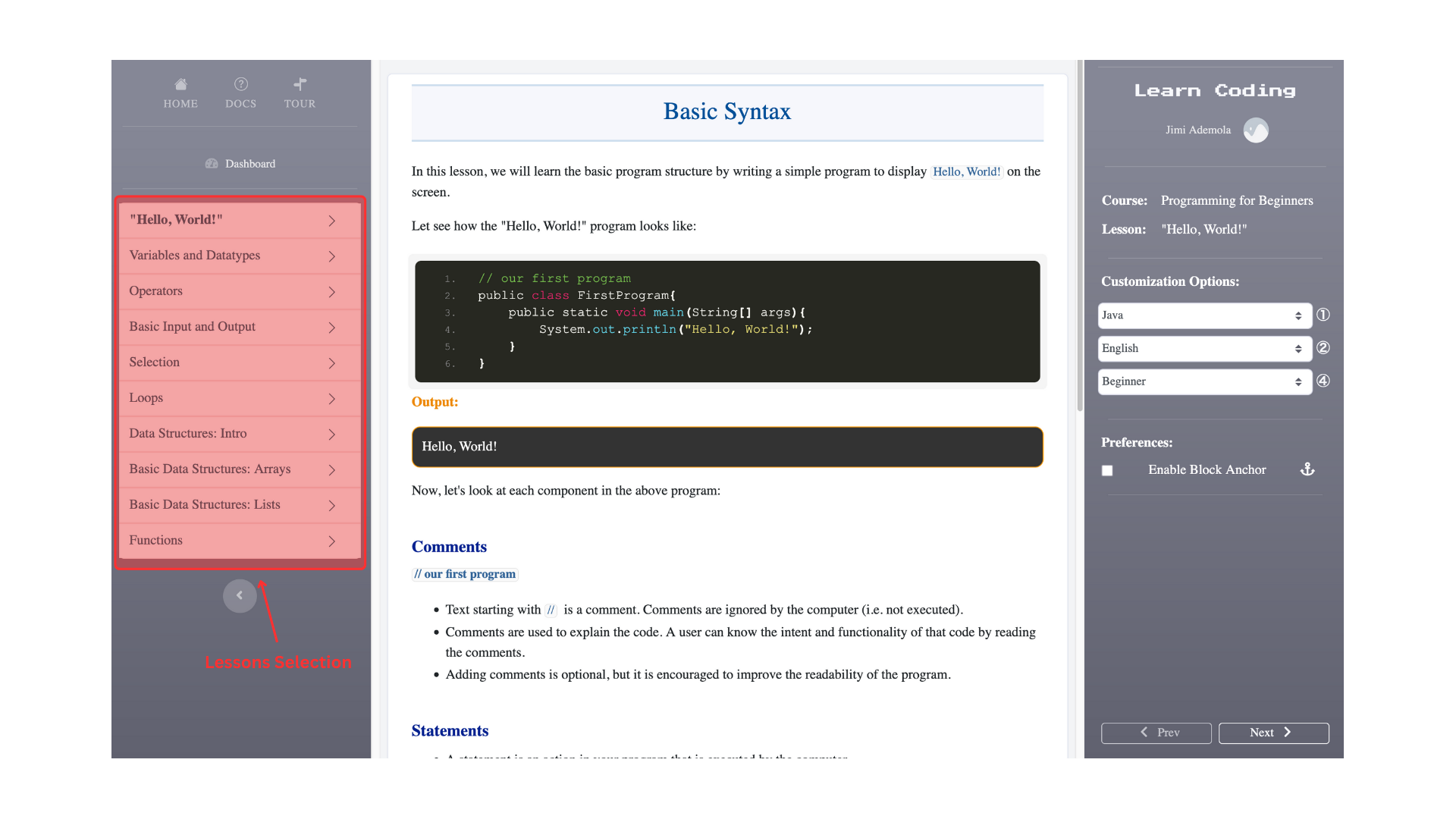
Customizability
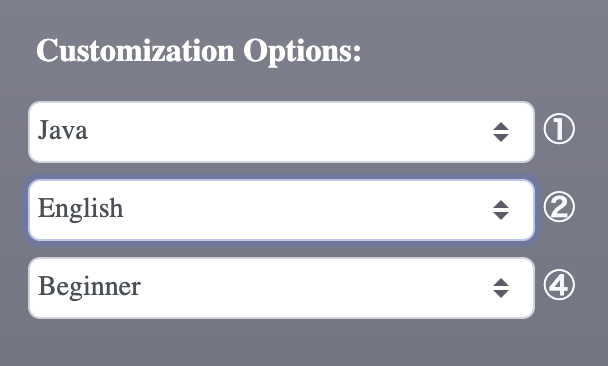
Our lessons are designed to be actively updated by instructors with different backgrounds. Where applicable you can select different options to view the lesson in your language, your preferred programming language or with different examples and applications related to your field of study.
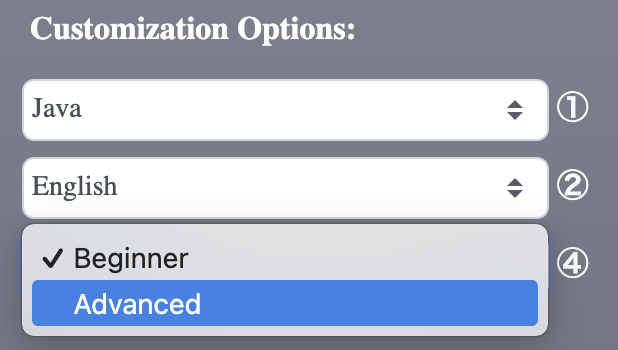
Basic and Advanced Content
If you want to challenge yourself, make sure to check if a lesson contains advanced content! Most lessons contain advanced topics and content in addition to the basic content available.
Badge Awards
When you complete a lesson or an entire course, you may be awarded a badge! LearnCoding issues its
own standards-compliant Open Badges 3.0 credentials directly, with no external account to
create or connect.
These badges are unique digital micro-credentials awarded specifically to you so that you can show
your professors, employers, your friends or family that you've completed the material. Badges are
earned per programming language, at either the basic or advanced tier, for a single lesson or for
a whole course.
Check the Badges page in the docs for more specific details, including how to share, download, and
verify a badge!